

Figma App Store Screenshot Template
How the popular Figma Community screenshot files actually work, the mockup-plugin workflow they assume, and when generating beats maintaining the file.
On this page
A Figma App Store screenshot template is a Community file of listing-sized artboards that you fill with your own screens and captions, then export as PNGs for App Store Connect. Nearly every file that ranks for this query assumes the same workflow: install a device-mockup plugin, replace the placeholder screens, rewrite the placeholder captions, and export each frame at 3x.
That workflow is worth understanding before you commit to it, because along with the file you take on a set of ongoing jobs (copywriting, art direction, spec upkeep, per-language duplication) that stay yours for as long as the listing lives in Figma.
Inside the files that rank
App Store Screenshot Template holds the top spot for this query. Its own description sums up the genre: replace screens with a mockup plugin, write text, "the system will do the rest." What it provides is a page of well-organized components, which saves real setup time, though the headlines, slide order, and art direction still come from you.
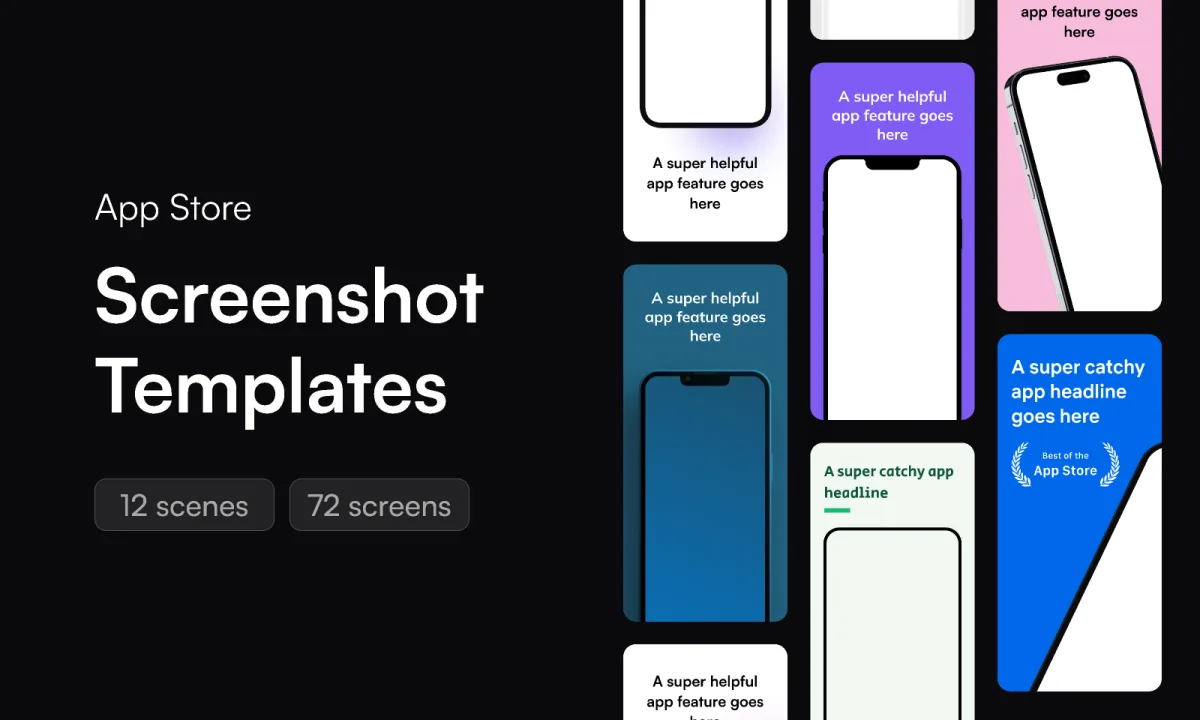
500+ App Store screenshot templates competes on volume across iPhone, iPad, and Android frames. A bigger library doesn't reduce the work per slide, since you still choose the layout, the crop, and the words for each one.
aso.dev's free template is the most engineering-minded of the set, with localization structure and multi-device support, and it's maintained by an ASO tool vendor with an incentive to keep sizes current.
ASO Screenshots is a plugin rather than a file: it drops real screenshots from live App Store listings onto your canvas for reference. Treat it as research material, because studying category leaders is exactly the right first step, and pasting their screens into your file is as far as it goes.
One more thing ranks here: AppLaunchpad's tutorial on doing all of this by hand, which walks the same steps and then pitches their web editor. The steps themselves are accurate.
The work the file leaves open
Filling a template page runs longer than the Community page suggests, and the overruns cluster in predictable places. The mockup plugin handles the bezel, but choosing which screen sells each feature is product thinking the file can't do. The caption boxes fit feature names ("Workouts", "History") more naturally than outcomes, and outcome-phrased headlines are what dominate top-chart listings; our corpus pages on headline formulas show the pattern per category. Slide order, palette, and whether the set still reads at search-result size are all judgment calls the artboards don't make either. None of this is a flaw in a specific file, because a template can't know what your app does or who it's for. The template gives you the layout for one listing, and the decisions about what that listing says are still yours.
Localization is where the cost grows fastest. Ten slides in five languages is fifty artboards to duplicate, retype, and re-export by hand, and every headline change after that touches five copies.
Check that the template uses current screenshot sizes
Whether a Community file exports the sizes App Store Connect currently accepts depends entirely on when its author last updated it, and many stop being updated after release. So verify the frame dimensions against the sizes page before duplicating forty artboards. The required 6.9-inch iPhone slot accepts 1320 x 2868, 1290 x 2796, or 1260 x 2736 pixels in portrait, and a frame that is off by a single pixel is refused on upload. Files bundling iPad and Google Play frames need the same check per platform. Screenies generates iPhone, iPad, Android phone, and Android tablet screenshots, so it covers Google Play sizes too.
Where the file genuinely wins
Custom illustration, an unusual layout, an existing Figma-based brand system, or a designer who already lives in the tool are all real reasons to stay. A Community file also costs nothing up front, and for a Games listing that wants full-bleed gameplay (46% of Games screens in our corpus), a designer working free-form in Figma may serve the app better than any device-in-frame layout, template or generated.
Where generating wins
Screenies replaces the file, the plugin, and the open decisions in one step: upload screens, describe the app, and get a drafted set with slide order, outcome-phrased headlines, and a set-wide look derived from your UI and category, with your capture framed in code rather than by a plugin. There's no artboard page to maintain when specs move, and caption localization reuses the same artwork instead of multiplying frames. One-time credit packs are on the pricing page.
Create a free iPhone, iPad, or Android mockup to place in your Figma design. Check the final artboard dimensions before exporting to App Store Connect or uploading to Google Play.
Answers for Figma users
Which mockup plugin do the templates expect?
Most files name one in their instructions, and any plugin that inserts a current-generation iPhone frame works. The plugin only affects the bezel; the export size comes from the frame dimensions, so that's the part to verify.
How do I export at an accepted size from Figma?
Set the frame itself to an accepted pixel size and export at 1x, or design at a clean fraction and export at the matching multiplier. Check the resulting PNG's pixel dimensions rather than trusting the preset label.
Is the ASO Screenshots plugin a template?
It's a research tool. It shows you real listings from the store for inspiration and comparison, and you still design your own frames.
Can I import my Figma file into Screenies?
There's no Figma import or plugin. Screenies starts from app screenshots you upload, not from design files.
Do I need a paid Figma plan for these templates?
The free tier opens Community files fine. Limits show up in team features and file organization, not in exporting screenshots.
What should slide one show?
The strongest outcome your app delivers, phrased as a headline, over the screen that proves it. Category-specific patterns are collected under App Store screenshot ideas.
If the file is the obstacle
When the artboards, the plugin, and fifty localized frames are what's between you and an updated listing, generate the set from your screens instead and keep Figma for the work that actually needs a designer.
Related guides
AppLaunchpad Alternative: Template Editor or Generated Set?
Compare AppLaunchpad with AppScreens and Screenies on price, templates, device sizes, localization, and upload before you move a screenshot project.
Photoshop App Store Screenshot Template: PSD or Generated Set?
Compare a Photoshop PSD template with a generated screenshot set. Check Smart Object copies, editable captions, and exports before building every slide.

App Store Screenshot Template
Where App Store screenshot templates come from, what the ranking files and web tools include, and how a generated set changes the workflow.