

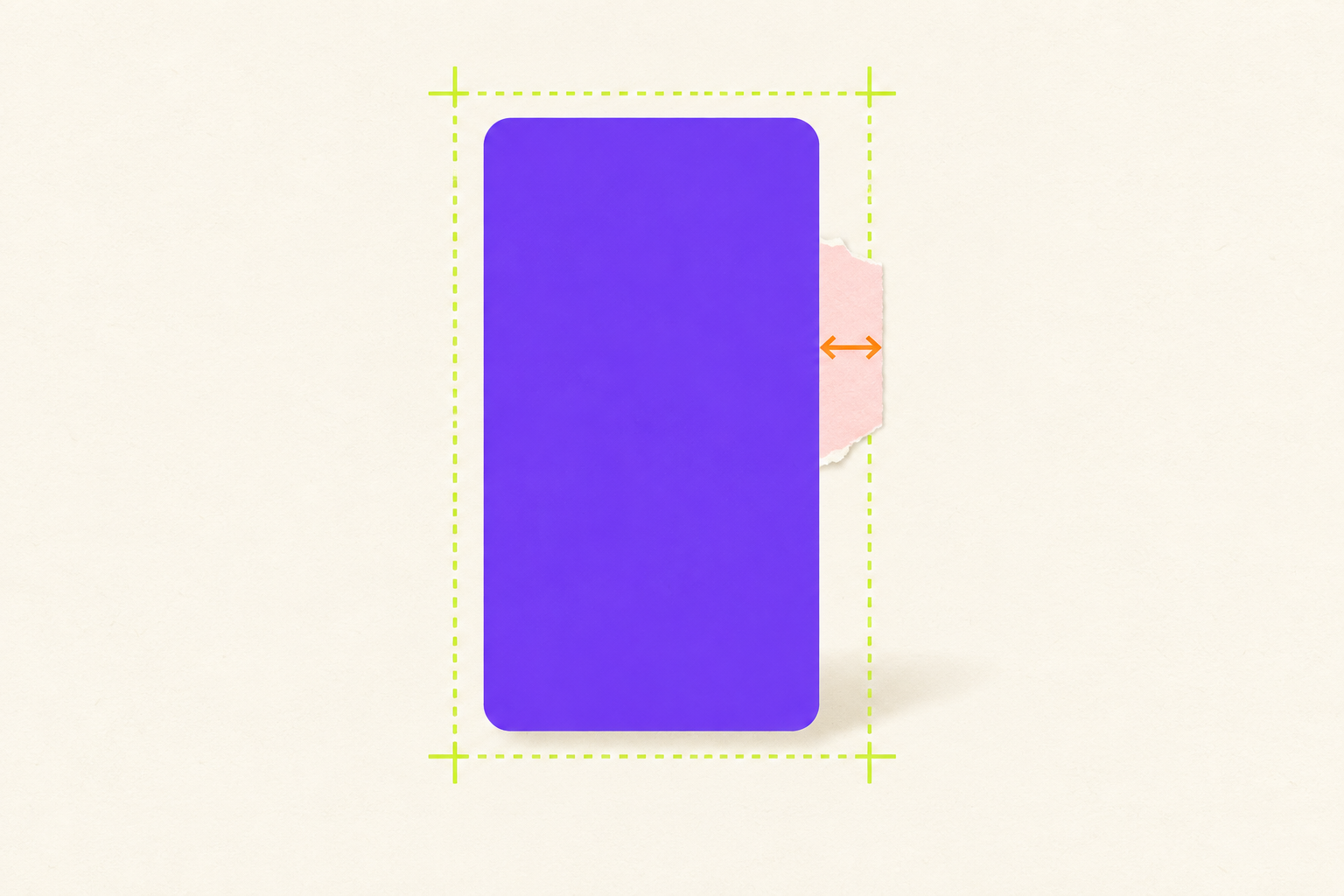
App Store Screenshot Resizer: Fix a Refused Size Without Stretching
Why App Store Connect refuses a screenshot, which target size to resize to, and how to scale, pad, or crop a capture without distorting it.
On this page
An App Store screenshot resizer scales an image to one of the exact pixel sizes App Store Connect accepts for a display class. Before you reach for one, confirm which class refused the file, because most upload failures come from a capture at the wrong class, a PNG with an alpha channel, or a HEIC that never became a PNG, and only the first of those is fixed by resizing.
App Store Connect checks each upload against a list of exact sizes per display class. The 6.9-inch iPhone class accepts 1320 x 2868, 1290 x 2796, or 1260 x 2736 pixels in portrait, and the 13-inch iPad class accepts 2064 x 2752 or 2048 x 2732. A file that is off by a single pixel, or that arrives as a transparent PNG, is refused with a dimensions or format message that doesn't say which of those problems you hit. The fix is to identify the cause, choose the one target size the class needs, resize by scaling rather than stretching, and check the exported file before uploading it again. That sequence takes a few minutes, and it avoids the common detour of producing ten sizes for classes Apple would have filled in on its own.
Find out what actually failed
Open the refused file in any image viewer and read three properties: pixel width and height, file format, and whether the PNG has transparency. A capture straight from an iPhone 17 Pro is 1206 x 2622, which is a 6.3-inch class size. App Store Connect now lists that 6.3-inch slot as the required one, so the capture can go there as it is; it's refused only when you drop it into the 6.9-inch slot, which takes its own three sizes. In that case the message is about class, not about the image being wrong. A capture from an iPhone 17 Pro Max is already 1320 x 2868 and needs no resizing at all, and the guide to App Store screenshots from the Simulator gets the same size from the Pro Max simulator if you don't have the phone. On the iPad side, an iPad Pro 11-inch capture is 1668 x 2420, and the required 13-inch slot needs 2064 x 2752, which has a wider aspect ratio, so plain scaling won't get there.
Format problems look like size problems until you check. Photos synced from an iPhone often arrive as HEIC, and renaming a HEIC file to .png doesn't convert it, so the upload still fails. Screenshots exported from design tools with a transparent background carry an alpha channel even when every pixel is opaque, and App Store Connect refuses those too. The screenshot size checker reads the real file header in your browser, reports the format, the matching display class, and any alpha channel, and takes up to ten PNG or JPEG files of 25 MB each without an account. It doesn't change the file; that's the next step.
Resize to one target size, not ten
App Store Connect now lists the 6.3-inch iPhone slot as required and, for apps that run on iPad, the 13-inch slot. A 6.9-inch set fills the 6.3-inch slot by scaling if you upload that instead, and every smaller iPhone and iPad class is filled by scaling when you leave it empty, either directly from those sets or through a chain of older classes. Several resizers advertise exporting every accepted size from one drop, which is harmless but pointless: the 6.1-inch and 11-inch slots fill themselves. The full accepted-size table, with the fallback rule for each class, is on the App Store screenshot sizes page, and each device has its own page, such as iPhone 17 Pro Max. If the 13-inch set is the one you're missing, the 13-inch iPad simulator captures at an accepted size directly, as the guide to iPad screenshots without an iPad shows, so there's nothing to resize.
Pick the target that's closest to your source. A 1206 x 2622 capture needs no resizing for the required 6.3-inch slot. If you also want a 6.9-inch set, 1320 x 2868 is the natural choice, because the two aspect ratios differ by less than a tenth of a percent: scaling the capture to 2868 pixels tall gives a width of 1319.2, so the resizer either pads or trims under one pixel. For a 1290 x 2796 capture from an iPhone 15 Pro Max or 14 Pro Max, the file is already accepted and the failure was something else. For iPad, none of the 11-inch sizes share the 13-inch ratio, so the choice is between padding and cropping, covered below.
Scale, pad, or crop
A resizer offers some combination of three operations, and the right one depends on how far the source ratio is from the target.
- Scale keeps the ratio and changes both dimensions by the same factor. Use it whenever the ratios match closely, which is the case for every modern iPhone capture going to the 6.9-inch class. A small upscale from 1206 wide to 1320 wide is a factor of 1.09, and text stays readable.
- Pad (also called letterbox or contain) scales the source until it fits inside the target and fills the remaining strip with a color. Use it when the capture must stay complete, such as an iPad screen where cropping would remove a toolbar. Choose a fill that matches the app's background so the strip reads as margin rather than as a mistake.
- Crop (cover) scales the source until it fills the target and trims the overflow. Use it only when the trimmed edge carries nothing that matters. Trimming a 1668 x 2420 iPad capture to the 13-inch ratio removes about eight percent of its height, which is usually the status bar and part of a tab bar.
Stretching, which changes width and height by different factors, is never the answer. A stretched capture passes the dimension check and then ships with squashed type and oval buttons.
Tools that rank for this search, and what each does
The results for this query are mostly free in-browser tools, and their descriptions are specific enough to compare.
- App Screen Magic's resizer runs in the browser without a signup or a server upload, exports every accepted App Store Connect size from one drop, and lets you choose cover crop or letterbox padding per export.
- AppScreenshots.net's Free Screenshot Resizer uses presets for App Store, Google Play, Chrome Web Store, and social sizes.
- resize.4id.me resizes iPhone captures to App Store Connect dimensions and states that files never leave your machine.
- josephe44/ios-screenshot-resize is an open-source browser tool with preset sizes and a fit-mode choice, useful if you'd rather read the code that touches your files.
- ScreenshotResize is a native app in the App Store's Developer Tools category with batch import, a live preview, and no subscription.
- The Figma Screenshot Resizer plugin ranks here but solves a different problem: it downscales captures from physical pixels to logical points for use inside design files, which is the opposite direction from an App Store upload.
You don't need any of them if you're on a Mac. The built-in sips command scales in place, and ImageMagick handles padding and cropping:
sips -z 2868 1320 capture.png --out screenshot.png
sips -z takes height then width and will distort a mismatched ratio, so use it only when the ratios already match. For a padded or cropped result, ImageMagick's -extent does the work:
magick capture.png -resize 2064x2752 -background "#0f0f12" -gravity center -extent 2064x2752 screenshot.png
Swap -resize 2064x2752 for -resize 2064x2752^ to crop instead of pad. Either way, run the output through the size checker before uploading, because a command that exported at the right size can still leave an alpha channel in the PNG.
When resizing is the wrong fix
If the file you're resizing is a bare capture, the size error is masking a bigger gap. A raw screen at 1320 x 2868 uploads fine and tells a browser nothing about the app. The how to make App Store screenshots walkthrough covers turning captures into slides with a headline and a device frame, which is the step most resizer users skip. And if you're weighing free tools against paid ones for the whole set, the free screenshot generator guide lists what each free tier exports.
Where Screenies fits
Screenies produces the finished slides at an accepted size in the first place, so the resizing step disappears: iPhone sets export at 1290 x 2796 and iPad sets at 2064 x 2752, as opaque PNGs, and the app screen in each slide comes from your own capture, either placed in the frame as the file you uploaded or rendered into a photographic scene from it. Each batch is one device and one orientation, and it doesn't export extra display classes from the same run; Apple's scaling covers the rest. Generation uses one-time credit packs at one credit per iPhone slide and two per iPad slide, and the size checker linked above stays free whether or not you buy one.
FAQ
The size is right but the upload still fails. Why?
Check for an alpha channel and confirm the file is really a PNG or JPEG. A transparent PNG or a renamed HEIC produces the same refusal as a wrong size, and the size checker reports both problems. If the file passes the checker and still won't land, or sits in processing, the guide to App Store screenshots not uploading covers version state, roles, and stalled uploads.
Do I have to upload every iPhone size?
Upload a set for the required 6.3-inch slot, or a 6.9-inch set that App Store Connect scales into it, and Apple scales the smaller classes from there. The sizes page lists which classes fall back to which.
Can I upscale a 6.1-inch capture to 6.9-inch?
A 1170 x 2532 capture scaled to 1320 x 2868 is a 1.13x upscale at nearly the same ratio, and the result is acceptable for a screen capture. Text rendered by the app scales cleanly; photographs inside the capture soften slightly.
Does the free size checker resize files?
The checker only reads dimensions, format, and transparency locally and tells you what matched. Use one of the tools above or the commands in this post to change the file.
Do landscape screenshots use the swapped size?
For current classes, yes: a 6.9-inch landscape file is 2868 x 1320 or 2796 x 1290. A few legacy classes accept landscape sizes that aren't a simple swap, and the per-class table on the sizes page lists them. Whether a landscape set suits your app at all is covered in the post on App Store landscape screenshots.
Should I use an AI outpainting tool to extend a capture instead of padding it?
Only for the background around a device frame, never for the app screen itself. An outpainting model draws pixels that don't exist in the app, and a reviewer who compares the screenshot with the running app can reject the listing for it.
Related guides
App Store Screenshots Rejected: Match Apple's Message to the Fix
What a screenshot rejection under App Review guideline 2.3.3 usually means, how to map the wording in Apple's message to the slide that caused it, and how to resubmit the same build once the images are fixed.
App Store Screenshots Not Uploading? Fix Every App Store Connect Error
Fix 'The dimensions of one or more screenshots are wrong', 'Images can't contain alpha channels', and 'still screenshot uploads in progress' in App Store Connect. Check your files free first.
Google Play Feature Graphic: Size, Placement, and How to Make One
How to make the 1024 x 500 Google Play feature graphic, where Google shows it, how to keep your logo and app name out of the cutoff zones and the video play button, and how to check the file before Play Console sees it.