

Canva App Store Screenshots
How to make App Store screenshots in Canva, where the free tier stops helping, and when a purpose-built editor or a generated set is the better trade.
On this page
You can make App Store screenshots in Canva: create a custom design at 1320 x 2868 pixels, build one page per slide, and export flattened PNGs that App Store Connect accepts. What Canva doesn't have is any App Store screenshot preset, so the spec compliance, the device frames, and every design decision are set up by hand, and this post covers where that handwork is fine and where a purpose-built tool earns its keep.
The search results for this query tell you something before you open the editor. Canva's own pages that rank are its mobile prototype templates and a generic app templates gallery, neither of which is sized or structured for an App Store listing. Right under them sit "Canva alternative" comparisons from AppScreens and AppLaunchFlow, which is roughly the market telling you Canva users go looking for something else. That doesn't make Canva wrong for the job, but it does mean nobody, including Canva, has packaged the job for you.
Setting Canva up for a listing set
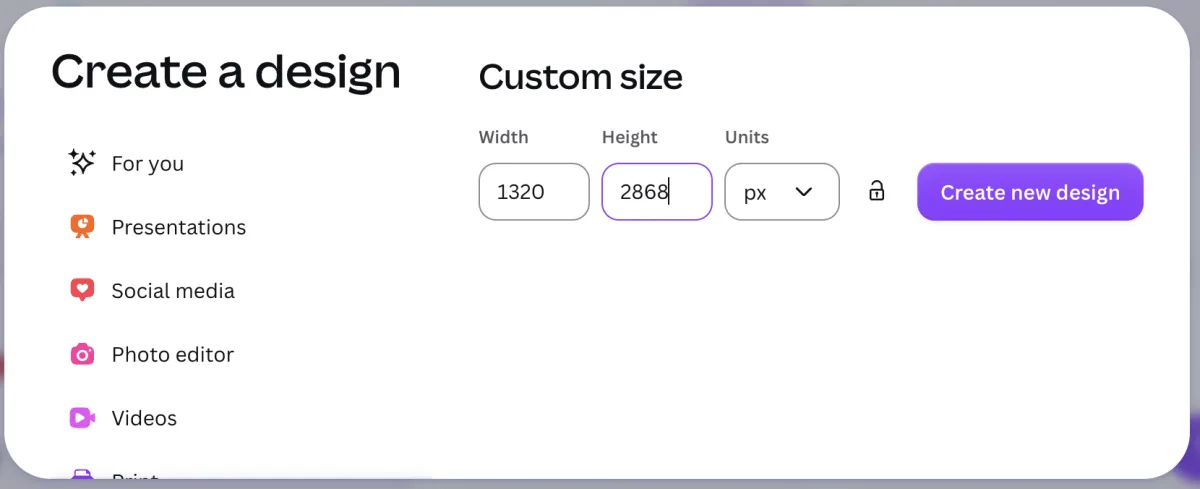
Start with a custom size, not a template. Click Create a design, choose Custom size, and enter one of the three dimensions App Store Connect accepts for a 6.9-inch iPhone set: 1320 x 2868, 1290 x 2796, or 1260 x 2736. Add one page per screenshot, up to Apple's limit of ten. From there a typical slide is a background (solid fill or gradient), a headline text box near the top, and your app screenshot placed inside a device frame. For the frame you have two routes: search Canva's elements for an iPhone mockup and drop your capture into it, or use Canva's Mockups feature (the former Smartmockups) to wrap your screen in a device photo. Check that whichever frame you pick looks like a current iPhone, because a lot of the free mockup elements still show notched or home-button devices, and a 2018 bezel quietly dates the whole listing.
Export is where the free tier mostly holds up. PNG download is free, pages export at the pixel size you defined, and App Store screenshots must be flattened without alpha anyway, so the Pro-only transparent background is nothing you need. The Pro features you might actually feel the absence of are Magic Switch for resizing a finished design to another dimension and brand kits for keeping fonts and colors consistent across projects.
What the editor leaves you to solve
Canva solves layout mechanics and nothing above them. The slide order that turns ten screens into an argument, the headline on each slide, the palette that reads as your brand at thumbnail size, and the restraint to keep one visual system across all pages are decisions the blank canvas hands straight back to you. This is the same gap every general-purpose design tool has, and it's why a Canva listing project usually takes an afternoon rather than the twenty minutes the editor's ease suggests. There's also a subtler trap: Canva's element library is built for social posts, so it nudges you toward decorative stickers and busy backgrounds, while the listings that top the charts are strikingly disciplined. In our August 2026 corpus of top-chart iOS apps, 96% of Graphics & Design apps use a feature-per-slide structure, and 61% of that category's screens present the app in a straight-on framed device. The pattern that tops the charts is plainer than what Canva's library encourages you to build.
Localization deserves its own warning. Canva has no per-locale duplication workflow for a project like this, so five languages means five hand-edited copies of every page, and any headline change after launch means editing it five times.
Canva against the purpose-built options
The honest comparison isn't Canva versus nothing, it's Canva versus tools built for exactly this output. Web editors like AppScreens and AppLaunchpad start you in correct dimensions with current device frames, handle multi-size export, and offer localization workflows on paid tiers; AppLaunchFlow adds AI-generated copy and direct store publishing to that list. What you give up against Canva is the giant general-purpose element library and the familiarity of a tool you may already pay for. If your screenshots are one project among many design tasks, Canva's breadth is a real argument; if the listing is the whole job, the purpose-built editors remove the setup and the spec upkeep you'd otherwise own. We've compared the template-style tools in more depth in the App Store screenshot template post.
Generation is the third route, and it's a different kind of trade. Rather than a better editor, Screenies works from the other end: it takes your raw captures and a short app description, then comes back with a full listing proposal for you to approve, tweak, or reject slide by slide.
Make a free device mockup if you need a framed screen to place in your design. Download a PNG with no account or watermark.
Screenies for the Canva-tempted
If what draws you to Canva is not having to think about specs, Screenies goes further in that direction: it plans the slide order and headlines from your app description, derives a set-wide palette from your UI, and places your actual app screens into device frames and exports at the supported App Store and Google Play dimensions. Headline edits after generation are free, and translated captions get re-composited onto artwork you've already generated, so adding a language never means rebuilding pages. Screenies generates iPhone, iPad, iPhone Duo, Android phone, and Android tablet screenshots from matching captures. Each target supports portrait and landscape in separate batches. The pricing page lists one-time credit packs with no subscription.
FAQ
Is Canva free for App Store screenshots?
The free tier covers the essentials: custom dimensions, text, many mockup elements, and PNG export. Pro mainly adds resizing between dimensions, brand kits, and premium elements, none of which are required to ship a compliant set.
Does Canva have an official App Store screenshot template?
It doesn't. The template library has phone mockups and app-design templates, but nothing sized to Apple's required dimensions, which is why the custom-size route is the reliable starting point.
What size should I set my Canva design to?
Use 1320 x 2868, 1290 x 2796, or 1260 x 2736 pixels in portrait for the 6.9-inch iPhone set that App Store Connect accepts. A 6.5-inch set at 1284 x 2778 or 1242 x 2688 pixels is also accepted instead. Landscape uses the reversed dimensions. The full device matrix is on the App Store screenshot sizes page.
Can I use Canva's stock photos and elements in a listing?
Canva's free content license covers commercial use including app marketing, so yes for the frame and background. The screen inside the frame still has to be your app's real UI, since Apple's review guidelines reject screenshots that misrepresent the product.
Will Apple reject screenshots made in Canva?
Not for being made in Canva. Rejections come from wrong dimensions, transparency, or content that misrepresents the app, and all three are in your control regardless of tool. The requirements page lists what review checks.
Can Screenies import my Canva design?
Design-file import isn't a thing Screenies does; its input is the raw app captures themselves, so an existing Canva project is neither needed nor readable by it.
Try the drafted-set route
Before you build ten pages by hand, upload your captures to Screenies and see what a planned set looks like with your real UI in it. Even if you end up hand-finishing a slide or two, starting from a drafted order and drafted headlines beats starting from a blank page one.
Related guides
AppLaunchpad Alternative: Template Editor or Generated Set?
Compare AppLaunchpad with AppScreens and Screenies on price, templates, device sizes, localization, and upload before you move a screenshot project.
Photoshop App Store Screenshot Template: PSD or Generated Set?
Compare a Photoshop PSD template with a generated screenshot set. Check Smart Object copies, editable captions, and exports before building every slide.
AppScreens Alternative: Compare Editing and Generation Costs
Compare AppScreens, Nakxi, and Screenies by editing workflow, billing period, and revision costs before moving your screenshot work.