

App Store Panoramic Screenshots: What They Are and When They Work
What a panoramic App Store screenshot set is, how one wide design gets cut into separate uploads, where the effect breaks in search results and on the product page, and how rarely top-chart apps use it.
On this page
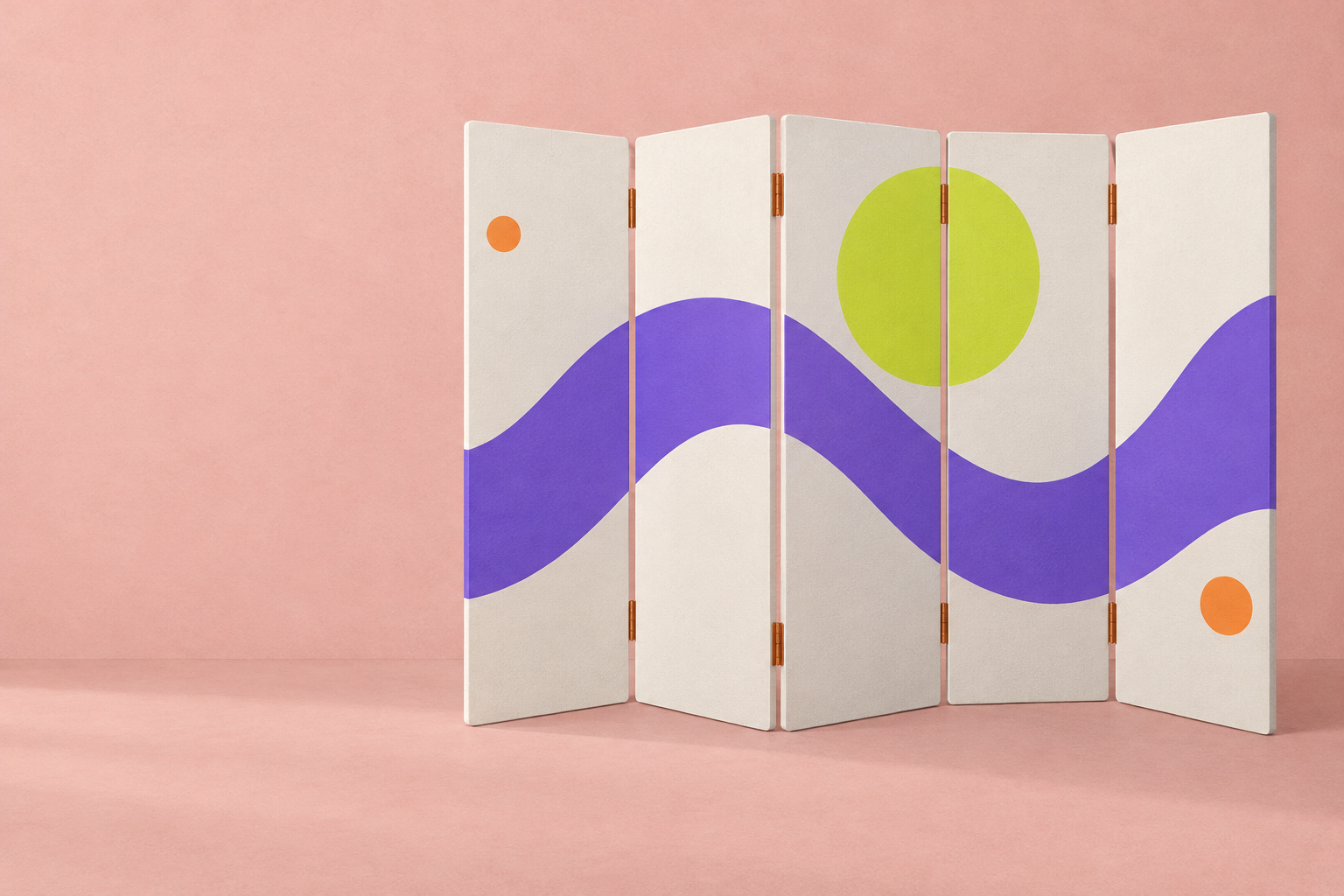
App Store panoramic screenshots are a set designed as one wide image, so a background, a device, or an illustration runs off the edge of one slide and picks up on the next. Apple has no panorama format: you build the artwork on a long canvas, cut it into separate screenshots at an accepted size, and upload them in order like any other set.
For a five-slide iPhone set at 1290 x 2796, that canvas is 6450 x 2796, and every cut line falls on an exact multiple of 1290 pixels. The effect only shows when someone sees neighboring slides together, which happens on the product page as they swipe. Search results show only the first one to three, so each slide still needs its own readable headline and a screen that makes sense without its neighbors. Top-chart apps rarely use one, and a span that's slightly misaligned at a cut tends to look like an export error. If you only want to try one, span the first two slides and keep the rest standalone.
How a panoramic set is built
Start with a canvas as wide as the slide count times the width of one slide, and the same height. Mark the cut lines before you place anything, because the design decisions all happen around them. The shapes that cross a cut should be ones that still look fine split in half: a gradient, a wave, a road, a long shadow, or a device tilted so that its corner pokes into the next slide. Headlines and app UI belong inside a single slide, away from the cuts. When you export, slice the canvas into files at exactly the slide width, and check each one in the free screenshot size checker before uploading, since a slice that's a few pixels off will be refused.
Where the panorama breaks
The App Store draws every screenshot as its own rounded tile with a strip of page background between neighbors, so a shopper sees a break at every cut. A line that crosses one jumps across that gap, which is why soft shapes hold up better than a face, a word, or a row of UI. Search results are harder on the effect. Apple's product page guidance says one to three screenshots show in search depending on orientation, and only when the listing has no app preview. With a preview video, the video takes the first slot, so the panorama starts one slot later and less of it fits in the row. The guide to how many App Store screenshots to use covers why those first slots matter so much.
Changes after launch are the other weak point. Swapping slide 3 for a new feature screen means redesigning the pieces on slides 2 and 4 that touched it, because the old shape now ends at a cut with nothing on the other side. Moving two slides around breaks the shapes at their edges in the same way. A localized set keeps its artwork, so translated headlines that run longer need to fit inside their own slide. Each device size is its own set, too: an iPad's wider slide changes where every cut lands, so a 13-inch iPad panorama needs a canvas of its own.
A panoramic set isn't the same as a landscape screenshot set, even though both get called wide. Landscape changes the shape of each slide, while a panorama keeps portrait slides and connects them.
How often top apps use one
Panoramas are rare among top-chart apps. In the sets we analyzed in August 2026, 6 of 1,038 had a panoramic structure, where the whole set reads as one continuous image. Travel used it the most, with 3 of its 54 apps, which fits a category that sells a place or a route more than a single screen. The panoramic set page has the category breakdown, and the panoramic continuation page covers the layout where a single element joins two or more neighboring slides. The travel screenshot ideas show what the rest of that category does instead.
When spanning is worth it
Spanning is worth the extra work when the thing connecting the slides means something for the app. A route that runs from a departure city on slide 1 to a hotel on slide 3 tells a travel story, and a timeline that stretches across a habit tracker's set shows progress over time. Background gradients that continue across the cuts don't tell a story, though they make the set look like it was designed in one piece, and that's often reason enough for a soft span. Skip the effect when you change screenshots often, when a preview video already fills the first slot, or when your first three slides need every pixel for UI. Google Play allows the same treatment, and the Google Play screenshots guide covers the condition it puts on the first three images.
Tools that make panoramic sets
When we checked in October 2026, five of the eight organic results on the first page for this search were tool pages, and a sixth was a Figma Community file. AppScreens and AppMockUp Studio both connect a whole set with one background, and AppMockUp says it adjusts the panorama when you add or remove a screenshot, which takes care of part of the reordering problem. Hotpot has drag-and-drop panorama templates, free or $1 per graphic, built around an iPhone 12 Pro Max frame. Screenshots Pro says it makes panoramic screenshots for iOS and Android with no account, Previewed pitches panoramic mockup sets from its templates, and the Store Screenshots file on Figma Community is the free route if you'd rather draw the canvas yourself.
Panoramic sets from Screenies
Creative mode in Screenies writes the whole set as one HTML strip and is told to let elements cross the seams, then reviews the rendered strip the way a shopper scrolls it, while still checking that each slide reads alone. Clean mode keeps every device inside its own slide and lets only the generated background art flow from one slide into the next. How much of a set spans is the model's call, and the optional style hint is taken as inspiration rather than a rule, so you can start a set from your screenshots and ask for more continuity without a guarantee you'll get a full panorama. Reordering moves the finished images without redrawing them, so a shape that crossed a seam won't line up after a swap, and each iPhone slide costs one credit (two per iPad slide) from the packs on the pricing page.
FAQ
Should slide 1 be part of the panorama?
It can be, as long as it works as a poster when seen alone. Slide 1 is often the only one a shopper looks at closely, so its headline and screen come first, and the shape that carries into slide 2 sits behind them.
How many slides should a panorama span?
Two or three slides keep it manageable. Spanning the first two keeps the effect inside the slots most shoppers see, and a full ten-slide panorama makes every later change expensive.
Will a panorama still line up on smaller iPhones?
Yes, as long as every slide is the same size. When Apple scales the 6.9-inch set down for smaller iPhone displays, each slide shrinks by the same amount, so the shapes stay aligned across the gaps.
How do I cut a Figma canvas into separate screenshots?
Draw the artwork on one wide frame, then add a slice with the Slice tool over each slide-width section and export the slices as PNG or JPEG. Turn on the pixel grid and snap each slice to an exact multiple of the slide width, so no file comes out a pixel short.
Can app UI cross a cut?
It's better kept inside one slide. The gap and the rounded tile corners interrupt anything split at a cut, so a list or a button that crosses one reads as two broken pieces. The cuts sit at different positions for each device, and the screenshot sizes page lists the slide widths to plan them around.
Related guides

ASO Screenshots: What They Are and What to Check
ASO screenshots explain an app before download. Learn how to match each claim to real UI, review a set, and separate design choices from test results.
The Best App Store Screenshots and What They Share
Where to find the best App Store screenshots, the patterns the top listings actually repeat, and how to judge a set before you copy it.

App Store Landscape Screenshots: When to Use Them and How to Make Them
How to decide whether your App Store listing should use landscape screenshots, the landscape sizes Apple accepts for iPhone and iPad, how to capture wide screens in the Simulator, and how to lay out a slide that's wider than it is tall.